🚀 Free Tool Alert for Fundraisers & Creators!
Hey everyone! I built something that might help you out.
You know how PayPal only gives donation buttons to registered nonprofits and charities? If you're a creator, streamer, blogger, small business owner, or just someone trying to raise funds for a cause — you're basically locked out of that feature.
The problem: PayPal doesn't offer donation buttons for regular users. Only verified nonprofits get access.
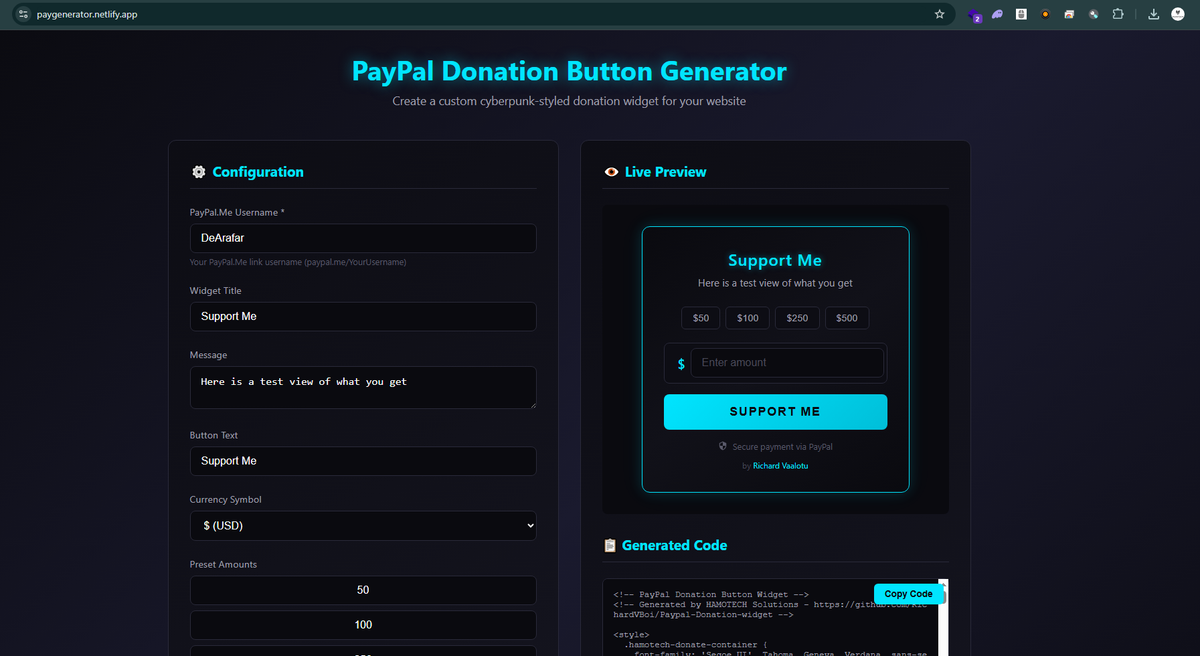
My solution: I created a free Donation Button Generator that anyone can use!
🔗 Try it here: https://paygenerator.netlify.app/
How it works:
- Enter your PayPal.Me username
- Customize your button (title, message, colors, preset amounts)
- Click "Generate Code"
- Copy the code and paste it on your website
That's it! You get a professional-looking donation widget that works with your existing PayPal.Me link. No nonprofit status required. No fees. No sign-ups.
📋 Where to paste the code (Step-by-step for each platform):
WordPress:
- Edit your page or post
- Click the + button to add a new block
- Search for "Custom HTML" and select it
- Paste the code
- Click Update/Publish
Wix:
- Open your Wix Editor
- Click + Add Elements
- Go to Embed & Social → Embed HTML
- Click "Enter Code"
- Paste the code
- Click Apply and position your widget
Squarespace:
- Edit your page
- Click + Add Block
- Select "Code" from the menu
- Paste the code in the box
- Toggle off "Display Source"
- Click Save
Ghost Blog:
- Edit your post or page
- Click the + button on a new line
- Select "HTML" card
- Paste the code
- Click Publish/Update
Shopify:
- Go to Online Store → Pages
- Edit your page
- Click the < > (Show HTML) button
- Paste the code
- Save
Weebly:
- Drag an "Embed Code" element onto your page
- Click "Edit Custom HTML"
- Paste the code
- Click outside the box to save
Blogger:
- Create or edit a post
- Switch to "HTML view" (not Compose)
- Paste the code
- Switch back to preview and publish
Webflow:
- Add an "Embed" element to your page
- Paste the code in the code field
- Click Save & Close
- Publish your site
Carrd:
- Add a new "Embed" element
- Select "Code"
- Paste the code
- Save and publish
Notion (for public pages):
- Type /embed on a new line
- You'll need to host the HTML somewhere first (like CodePen)
- Paste the hosted URL
Plain HTML Website:
- Open your HTML file in any code editor
- Find where you want the button (usually in the <body> section)
- Paste the code
- Save and upload to your hosting
Features:
✅ Custom preset amounts ($5, $10, $25, $50 — or set your own)
✅ Users can enter any amount they want
✅ Choose your own colors to match your website
✅ Works on any website
✅ Mobile-friendly design
✅ Secure — payments go directly through PayPal
✅ 100% free, no hidden costs
Who is this for?
→ Content creators accepting tips → Fundraisers for medical bills, emergencies, or community causes → Streamers and gamers → Bloggers and artists → Small projects that need support → Anyone with a PayPal.Me link who wants a proper donation button
Why I built this:
I needed a donation button for my own projects but discovered PayPal locks this feature behind nonprofit verification. Instead of paying for third-party services, I decided to build my own solution and share it with everyone for free.
💡 Pro Tips:
- Match the accent color to your website's theme for a professional look
- Use clear, simple messages like "Support My Work" or "Help Fund This Project"
- Place the button where visitors can easily see it — footer, sidebar, or dedicated support page
- Test the button yourself before going live!
Give it a try and let me know what you think! If you find it useful, feel free to share it with others who might need it.
Questions? Drop a comment or message me — happy to help!
Built with ❤️ by Richard Vaalotu 🌐 HAMOTECH Solutions 📧 richard@hamotechsolutions.com